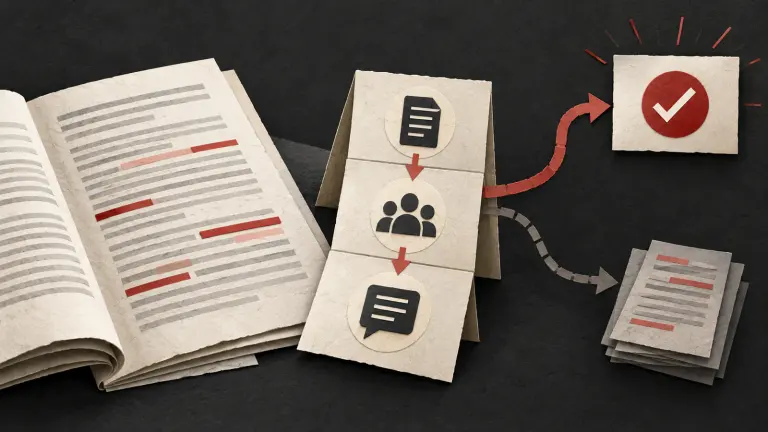
Gotham is available in the Chrome Web Store. The listing brings Gotham’s legal research and drafting workspace into a browser side panel, so you can keep the page you are working on in view while you work in Gotham.
The extension uses the same Composer described in the listing: chat, research, draft and review alongside your browser, with conversations, documents and connected knowledge available according to your workspace access. The listing also describes Playbooks, Workflows and chronologies. Availability of particular sources and actions depends on your account, workspace configuration and permissions.
Bring a selected passage into a legal workflow
When a page contains material you want to discuss, select the relevant passage and invoke the extension’s capture action. The passage is staged in Gotham for review. Check the captured text and the page context, add your question, and decide whether to send it. This is an intentional step in the workflow, not an automatic scan of every open page.
That boundary helps keep research practical. A passage can provide context for a follow-up question, but it is not a substitute for checking the original source, the full document, current authority or the matter record. If the selection omits a definition, exception or surrounding clause, return to the source before relying on an answer.
For a repeatable process after the initial question, Gotham Workflows can help organise steps and ownership. The broader legal practice workspace brings research and document work together. For contract review, the guide to a controlled redlining workflow explains how to trace changes to source language, playbook positions and approvals.
A practical first-use sequence
- Open the official Chrome Web Store listing and review its current details before adding the extension. Google’s Chrome extension installation guide explains the “Add to Chrome” flow and permission prompt.
- Open the extension and sign in to your Gotham account. Select the workspace that contains the relevant matter or connected sources.
- On a page you are permitted to use, select only the passage needed for the task and invoke the extension’s capture action.
- Read the staged text, verify the source and surrounding context, and state the question or drafting task clearly.
- Review the response against the original materials and your team’s rules before sharing or using it in a matter.
If the extension cannot connect, confirm that you are signed in to the intended account and workspace, then check with your workspace administrator or contact Gotham support. Do not paste confidential or restricted material into a workspace unless your organisation has approved that use.
Choose a useful passage before you ask
Start with the smallest excerpt that contains the issue you need to examine. For a contract clause, include its heading and any nearby definition or exception that changes its meaning. For a public policy or guidance page, include the relevant rule and the paragraph that explains when it applies. A short, well-chosen passage makes it easier to ask a precise question and to spot when the response has missed necessary context.
Write down what the excerpt can and cannot establish. A sentence may state a deadline but omit the event that starts the clock; a clause may set a duty but refer to another section for exceptions. If the answer depends on surrounding material, select that material as well or open the original page and read the full section. The extension is a way to bring selected context into a conversation, not a substitute for checking the source in its original setting.
Before sending, confirm that the selection contains no unrelated personal or confidential information. If the page is long, do not assume that one passage represents the entire document. Add a short prompt that names the question, the jurisdiction or document type where relevant, and the output you want, such as a list of defined terms to verify or a chronology entry tied to the selected text.
Turn a browser question into a reviewable task
A useful first prompt separates the material you supplied from the conclusion you want to test. For example, ask Gotham to identify the obligations stated in a selected clause, list the defined terms it relies on, and flag any point that cannot be answered from the excerpt. If you want a comparison, provide or select the second source too and ask for the exact wording that differs. This makes the answer easier to check than asking for a broad conclusion from a single paragraph.
When you receive a draft, trace each important statement back to the page or document. Confirm that a quotation is exact, that dates and names belong to the correct matter, and that the response has not converted an assumption into a fact. If a source is missing, ask for the missing document or open it yourself. If the passage is ambiguous, keep the ambiguity visible in the work product instead of smoothing it away.
The Chrome listing describes Playbooks, Workflows and chronologies. Those capabilities can help teams organise repeatable steps, but the right sequence still depends on your workspace and the task. A practical workflow can record the question, the source passage, the follow-up needed, and the person responsible for checking it. For a team-wide process, Gotham Workflows provides a broader place to think about steps and ownership after the browser conversation.
When installation or access is blocked
Google’s Chrome Help says that a work or school administrator may block extensions from the Chrome Web Store, and that Chrome can show a permission prompt during installation. If you use a managed browser, ask your administrator whether this listing is allowed and follow your organisation’s review process. Do not try to bypass a managed-device restriction. Chrome also offers extension controls in its settings, where users can review or change access for a particular site.
After installation, check that the extension opens and that you are signed in to the right Gotham account. Then confirm the workspace you selected is the one approved for the task. If a connected source or action is unavailable, permissions and workspace setup may be the reason; ask your administrator or the Gotham team to help check the account configuration. Avoid repeatedly pasting a full document as a workaround when the selected passage is enough to ask the question.
If your team is evaluating the extension, use a non-sensitive example first. Confirm the listing, the requested access, the account or workspace requirements and your internal approval before using it with matter material. The listing’s feature description and privacy disclosure can change, so read the current Store details when installing or reassessing the extension.
Check access and data details before connecting
The listing describes the extension’s current functions and links to its privacy policy. Read those details alongside your organisation’s own policies before using it with matter material. The Store’s disclosure identifies several categories of data handled by the extension; do not assume that browser access or account configuration makes every source suitable for every matter.
Gotham’s security information explains the product’s security practices. For a specific matter, follow your organisation’s access controls, client obligations and professional responsibilities. Keep the source available so a reviewer can verify the text and reasoning rather than relying on a generated answer alone.
Get Gotham for Chrome
Visit the official Chrome Web Store listing to review the current listing and install options. If you want to discuss how browser-based research and drafting could fit your team’s process, talk with Gotham.
Gotham helps bring research, document review and drafting into a connected workspace. The professional remains responsible for checking sources, context and final work product.
Questions about Gotham for Chrome
What can I do with Gotham for Chrome?
The Chrome Web Store listing describes Gotham’s Composer for chat, research, drafting and review in a browser side panel, with conversations, documents and available connected knowledge. The tools and sources you can use depend on your Gotham workspace and access.
Does the extension read every page I visit?
No. Page context is brought in only after you select content and invoke the extension’s capture action. Review the staged passage in Gotham before sending it with a request.
Do I need a Gotham account?
Yes. Connecting the extension requires signing in to Gotham and selecting an available workspace. Your permissions and connected sources determine what is available there.
Does Gotham make a final legal decision for me?
No. Use research and drafting output as work product to verify against the source material, applicable law and your organisation’s review process.
Where can I install the Chrome extension?
Open the official Chrome Web Store listing linked from this page. Review the listing and its privacy details before installing or connecting a workspace.
Gotham supports legal work; its AI outputs are working material for a responsible professional to review, verify and adapt.
How Gotham researches and reviews field guides