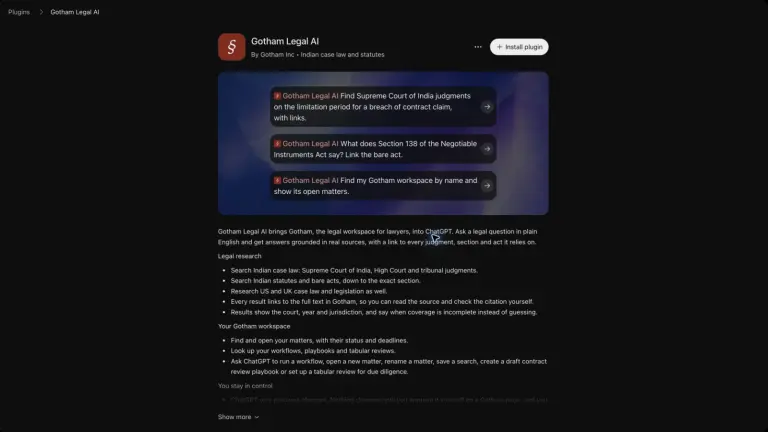
Gotham Legal AI is now published in ChatGPT's Plugins directory. You can use it to research case law and statutes, find work in your Gotham workspace, and prepare supported workspace actions for your approval.
For a lawyer who already uses ChatGPT, this provides a direct route to Gotham's research tools and workspace context. Ask a question in plain English, inspect the returned sources, and continue with the relevant matter or workflow. When a request would change something in Gotham, the plugin prepares the proposed action and gives you a Gotham page on which to approve or decline it.
This article covers installation, connection, useful first prompts and the approval flow. The images show the published plugin listing and real product screens, with account information removed from the captures.
Install Gotham Legal AI in ChatGPT
Open the Gotham Legal AI plugin listing and choose Install plugin. You can also open ChatGPT's Plugins directory, search for Gotham Legal AI, and open the listing published by Gotham Inc. The listing explains the research and workspace capabilities before you install.
Follow the connection prompts to sign into Gotham. Some plugin connections happen during installation; others are requested the first time you use a tool. The official OpenAI installation guide describes that sequence. After installation, start a new conversation and ask ChatGPT to use Gotham Legal AI for the task.
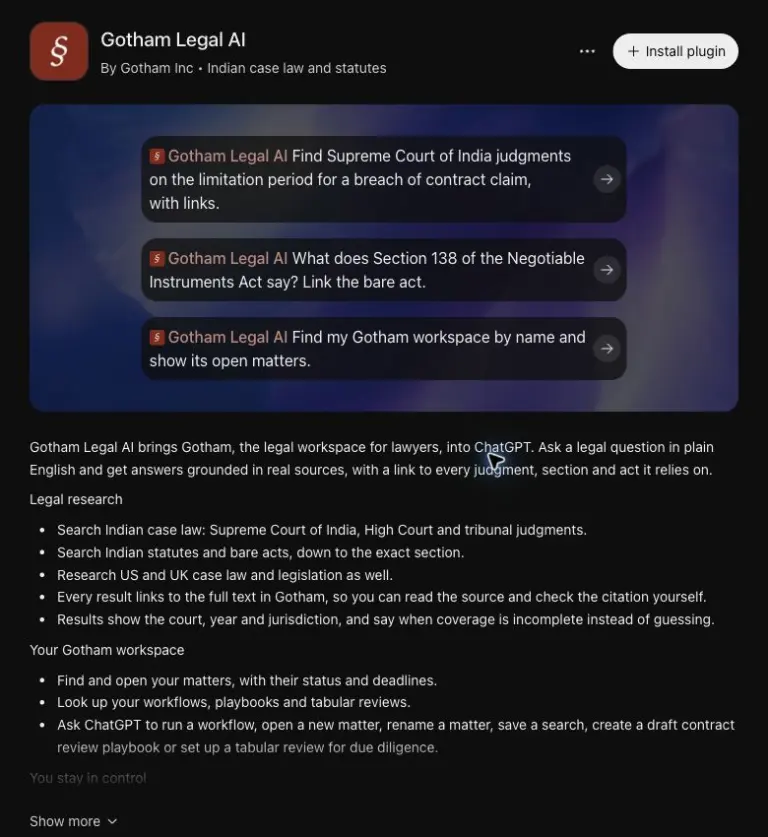
In a firm workspace, an administrator needs to enable the ChatGPT connection first. Use a workspace that you are authorised to access and that your organisation has approved for this workflow. If ChatGPT reports that the home workspace connection is disabled, ask the administrator to enable it or choose an already-enabled workspace you can access.
Connect the workspace where the work belongs
A legal task belongs in a particular workspace and, often, a particular matter. Tell ChatGPT which workspace you intend to use when the account has more than one. You can ask: “Use Gotham Legal AI to find my workspace by name and show its open matters.” Then select the relevant matter before asking a question about its records.
The connection follows the access you already have in Gotham. Matter permissions and ethical walls continue to apply. Connecting the plugin does not give you access to another team's restricted material, and finding a workspace does not grant membership in it. Keep these boundaries in mind when moving between a personal research question and client work.
For a first trial, use a public legal question or fictional matter material. This lets you learn how Gotham returns sources and how the approval handoff works without introducing confidential client documents. Your team's security and access requirements still govern which information is appropriate to use.
Research judgments statutes and exact sections
Gotham Legal AI supports research across Indian case law and statutes, including Supreme Court, High Court and tribunal judgments and section-level bare-act searches. The published listing also includes US and UK case law and legislation. State the jurisdiction explicitly when a word, doctrine or statute title could have more than one meaning.
A useful first prompt is: “Use Gotham Legal AI to find Section 138 of the Negotiable Instruments Act, 1881. Give me the provision title and a link to the full statutory text in Gotham.” This is a source-finding task. It asks for a specific provision that you can open and inspect, rather than a broad conclusion about an individual dispute.
For case law, add the issue and the court or jurisdiction you need. For example: “Find Supreme Court of India judgments addressing limitation in a breach-of-contract claim. Include links to the judgments and explain which issue each result addresses.” Review the returned court, year and jurisdiction, then open the full text to see whether the relevant passage supports the proposition you are researching.
The research result should lead you back to the source. A matching title or an authentic citation does not by itself establish that a judgment answers your question. The citation-verification checklist explains how to check the passage, proposition and context before relying on a result in a research note.
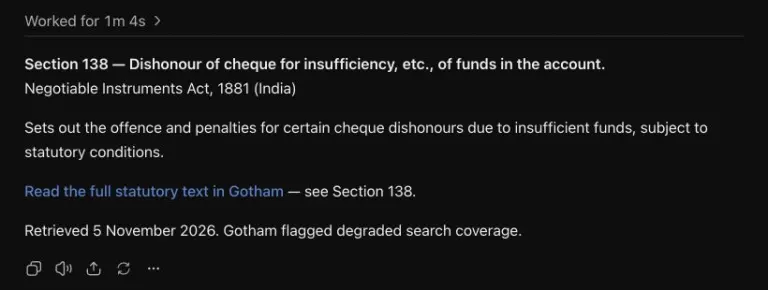
The example shows an actual public-source lookup. Its coverage notice remains visible so the reader can distinguish a returned provision from a claim of complete research coverage.
Find matters documents Playbooks and review work
The plugin also brings workspace discovery into the conversation. You can find accessible matters and inspect their status and deadlines, look up documents, and find your team's Workflows, Playbooks and tabular reviews. Use the names people recognise in the workspace rather than copying internal identifiers into a prompt.
A practical matter question might be: “Find the supplier agreement matter in my selected Gotham workspace and show its current status and upcoming deadlines.” A Playbook question might be: “Find our published NDA Playbook and show the preferred position and fallback for confidentiality term.” These are ways to retrieve the existing record and understand the standards before deciding what work to do next.
For due diligence, a tabular review keeps repeated questions beside a set of documents. You can find an existing review or ask ChatGPT to prepare a new one using specified documents and questions. Keep the question for each column clear: governing law, assignment restrictions and termination rights are different review questions and should not be combined into an ambiguous instruction.
The broader Gotham practice workspace remains the place to manage the complete matter and inspect its related work. The plugin gives the conversation a connection to those records, while Gotham retains the wider views and access controls.
Prepare a workspace action and approve it in Gotham
Supported actions include preparing a new matter, a matter-title update, a saved legal search, a draft Playbook, a tabular review or a run of a published Workflow. Ask for the action in ordinary language and include the information the task needs. A new draft Playbook is a starting record; it is not automatically a published set of contract rules.
For example, ask: “Prepare a tabular review of these three agreements with separate columns for governing law, assignment and termination.” ChatGPT prepares the proposed setup and gives you a Gotham approval page. Open that page, check the selected workspace, documents and review questions, then approve or decline the proposed action.
Approval is a distinct step. A statement in the chat that something is prepared does not mean the workspace has already changed. Review the result after approval as well: for a workflow, that means inspecting the run and its output; for a new matter, check the saved matter and its details.
Use your team's published Workflows for recurring tasks with established inputs and review steps. If the requested workflow has not been published, work with its owner in Gotham to finish the setup first. The plugin's handoff keeps the proposed action close to the conversation while leaving the approval with the user who is responsible for it.
Choose between ChatGPT and the Chrome extension
Use the ChatGPT plugin when your task starts in a ChatGPT conversation and you want Gotham's research or workspace tools there. You might search for an authority, find a matter, retrieve a Playbook position and prepare a follow-up action in one conversation, opening Gotham when you need its wider views or approval page.
Use Gotham for Chrome when your task starts on a webpage. The extension opens Gotham's own AI Composer beside the page and lets you explicitly attach a selected passage as context. This is useful when a browser source is the starting point for research or drafting.
Both connect to Gotham, but they are different interfaces. Installing the ChatGPT plugin does not install the Chrome extension, and installing the extension does not connect ChatGPT. Choose either or both according to where your team works and the connections your organisation permits.
Start with a task you can verify
Begin with one exact statute section, one narrowly framed case-law question or one workspace lookup. Read the returned source or record before expanding the task. If coverage is incomplete, keep that limitation with the research rather than assuming an empty result proves there is no relevant authority.
Before using research in a client matter, check the source text, jurisdiction, date and the legal proposition it supports. Before approving a workspace change, check its inputs and intended result. These are practical review steps that make a connected conversation useful to the next person who reads or continues the work.
Install Gotham Legal AI in ChatGPT and try a public-source question. If your team needs help enabling its workspace connection or choosing a first workflow, contact Gotham.
Questions about Gotham in ChatGPT
Where can I install the Gotham ChatGPT plugin?
Open the Gotham Legal AI listing in the ChatGPT Plugins directory and choose Install plugin. Follow the connection prompts, sign into Gotham and use a workspace whose administrator has enabled the ChatGPT connection.
What legal sources can I search?
Gotham Legal AI supports Indian case law and statutes, including section-level bare-act research, and research across US and UK case law and legislation. Specify the jurisdiction and inspect the returned sources and any coverage limits.
Can ChatGPT change my Gotham workspace automatically?
The plugin prepares supported workspace actions for review. You approve or decline the proposed action on its Gotham approval page before the change is applied.
Can I use my matters and Playbooks in ChatGPT?
You can find accessible matters, workflows, Playbooks and tabular reviews. Workspace membership, matter access rules and ethical walls continue to apply.
How is the ChatGPT plugin different from the Chrome extension?
The plugin makes Gotham tools available within a ChatGPT conversation. The Chrome extension opens Gotham's own Composer beside a webpage and lets you explicitly attach selected page text.
Gotham supports legal work; verify AI-generated research and proposed actions against the sources and your professional review requirements.
How Gotham researches and reviews field guides