If you need to know whether a PDF was changed, first ask two questions: Does it contain a certificate-based digital signature, and do you have a trustworthy earlier copy to compare? The answer determines what you can check.
A PDF can display a handwritten signature image without containing a cryptographic digital signature. A digital signature can help verify that the signed bytes have not changed since signing, subject to certificate and validation context. A comparison can show differences from a reference copy. None of these checks, by itself, proves who created the document, whether a signer had authority, or what the document means legally.
Preserve the file before checking it
Keep the file as received. Do not overwrite it by adding comments, running OCR, printing to PDF, optimizing, or resaving it. If the matter may become disputed, follow your organization’s preservation instructions or ask the responsible lawyer or records custodian before opening it in a tool that could change it.
Record what you know without guessing: the original filename, who or what sent it, how and when you received it, where it was first saved, and who has handled it. Keep a separate working copy for inspection. Store the received copy in an access-controlled location approved for the document’s sensitivity; do not upload confidential or personal material to an unfamiliar “free PDF checker” or file-sharing site. A tool’s availability does not tell you how it stores, reviews, or reuses uploads.
If your organization has an approved local hashing utility, you can record a cryptographic hash of the received file and the time, operator, algorithm, and tool used. Later, a matching hash can show that a file has the same bytes as that recorded reference. It does not establish who authored or signed the file, whether the first copy was genuine, or what happened before the reference was made. Protect the hash record separately; a hash kept beside an uncontrolled file is weak evidence of when or by whom it was created.
Step 1: Look for a digital signature, not just a signature picture
Open a working copy in a trusted PDF application and inspect its signatures or certificates panel. Look for a signature entry that the application can validate and show certificate details for. A name typed in a signature box, a scanned handwritten signature, or an image of initials on a page is a visible mark; it does not, on its own, demonstrate a certificate-based digital signature.
The distinction can be easy to miss because a certificate-based signature may also display a handwritten signature image. The picture is only its appearance. The relevant checks are the application’s signature status, the certificate associated with the signature, and the document revision that was signed. Adobe explains how a signature appearance can include an imported graphic and separately documents validation for certificate-based digital signatures in its signature appearance guidance and digital-signature validation guidance.
If no signature entry is present, record that you did not find a verifiable digital signature in the application you used. Do not conclude that the PDF has been altered. Many ordinary PDFs are never digitally signed.
Step 2: If there is a digital signature, inspect its status and scope
In the signature panel, review the application’s validation details. Record the exact status or warning shown, the certificate subject and issuer, the validation time, any timestamp information, and the application and version. Check whether the certificate chains to an authority trusted for your context and whether revocation or timestamp checks were available. If you do not know whether a certificate should be trusted, ask your IT or security team; do not change trust settings simply to make a warning disappear.
Then inspect the signed version and compare it with the file’s current version. PDF signatures can be associated with a particular revision. Later changes may be present, and some signed documents allow specified changes such as additional signatures or form completion. Review the application’s explanation of later changes and compare the signed revision to the current document. Adobe’s current help describes both validating a digital signature and comparing a signed version with the current version. Menu labels can differ across products and releases; follow the documentation for the version you actually use.
Write down the exact result, for example: “The application reported the certificate-based signature as valid under the validation settings in effect on [date]. The signed revision was compared with the current revision; the application listed [changes/no changes].” Avoid turning a status badge into a broader claim. A validation result does not by itself establish the signer’s real-world identity, authority, intent, the document’s legal effect, or that no changes occurred before signing. A warning may reflect an expired or untrusted certificate, unavailable validation data, or a change after signing; record what the application says and seek qualified technical help if the reason matters.
Step 3: If there is no verifiable signature, find a trustworthy reference
Ask whether you have an earlier copy whose source and timing can be supported: for example, a version held in a controlled records system, an original attachment preserved with its message, or a contemporaneous copy retained under an established process. A filename such as final.pdf, a date printed on a page, or the file’s editable metadata is not enough by itself to establish which copy came first.
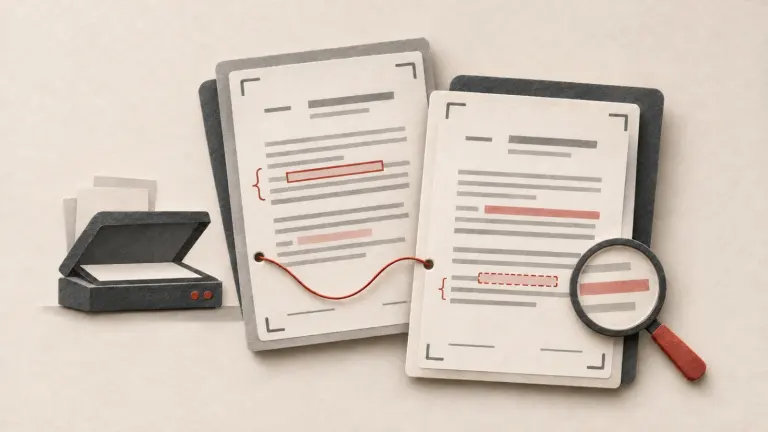
If you have a suitable reference, preserve both files and compare them. Check that they cover the same document and page set. Use a text comparison for wording, and inspect page images when stamps, handwriting, layout, signatures, or other visual features matter. Review flagged and unflagged pages in context: OCR errors, a new scan, different compression, or a changed crop can create apparent differences or hide relevant ones. Keep the comparison report separately and record the two filenames, their sources, the software and settings, the date, and what you manually reviewed.
The existing scanned-PDF comparison guide covers image and OCR comparison in more detail. Its comparison methods can locate differences between supplied versions; they do not establish which version is authentic or when a change happened.
If you have no verifiable digital signature and no trustworthy earlier reference, you cannot determine the PDF’s complete edit history from the file alone. You can describe what you observed now, such as visible pages, signature marks, or metadata, but you cannot reliably say whether the document is unchanged from an original you do not possess. Metadata timestamps may be missing, changed, or affected by copying and conversion; treat them as clues, not proof of chronology.
What a hash can and cannot tell you
A hash is a compact value calculated from a file’s bytes. If two files produce the same value with the same cryptographic algorithm, that supports that the byte sequences are identical. If the values differ, the files are not byte-for-byte identical, though the difference might result from a harmless resave, metadata update, signature, or conversion rather than a changed clause.
The reference is the important part. A hash calculated today cannot tell you whether the file was altered yesterday. It becomes useful for later integrity checks when the value was recorded and protected through a trusted process at the time the file was collected. Even then, it links the file to that recorded point; it does not authenticate the document’s history before then. NIST’s digital-evidence preservation guidance discusses preserving digital files and related handling information. For a matter requiring formal evidence handling, follow the applicable organizational process and seek qualified forensic guidance.
Keep a short, reproducible review record
For an ordinary internal check, record:
- the original file name, source, received time, and storage location;
- whether a certificate-based signature was found, and the exact validation status and certificate details shown;
- which signed revision was compared with the current version, if applicable;
- whether an earlier reference was available, how its source and date were established, and which comparison method was used;
- any hash algorithm and value recorded, when it was created, and where the reference record is protected;
- the application and version, settings, reviewer, date, observations, and limitations.
Keep source files, working copies, comparison reports, and notes distinct. NIST’s chain-of-custody definition describes documenting handlers, collection or transfer times, and purposes. If a dispute, investigation, court filing, or regulated record is involved, ask the responsible lawyer or records custodian what preservation and handling steps apply before doing more.
The practical conclusion
There is no single “altered” indicator that answers every question. A validated digital signature can support an integrity check for a particular signed revision. A comparison can identify differences from a particular reference. A contemporaneously protected hash can link bytes to a recorded reference point. Without a trusted signature or baseline, the file may not contain enough information to reconstruct its history. State exactly what was checked and what remains unknown.
For related tasks, see the guides on redacting scanned legal PDFs, PDF metadata and safe cleaning, and the electronic-evidence checklist. Those cover different workflows; they do not provide a forensic determination about this PDF.
Sources and limits
These sources describe file preservation and application checks. They do not establish who authored or signed a particular PDF, the legal effect of its contents, or its full history. Check current instructions for the application version you use.
- NIST, Digital Evidence Preservation: Considerations for Evidence Handlers (IR 8387).
- NIST, Chain of custody.
- Adobe Acrobat, Personalize digital signatures.
- Adobe Acrobat, Validate digital signatures.
- Adobe Acrobat, Compare signed document versions.
This general information explains document checks. It is not legal advice, a forensic examination, or a finding about the authenticity or legal effect of a particular file.
How Gotham researches and reviews field guides