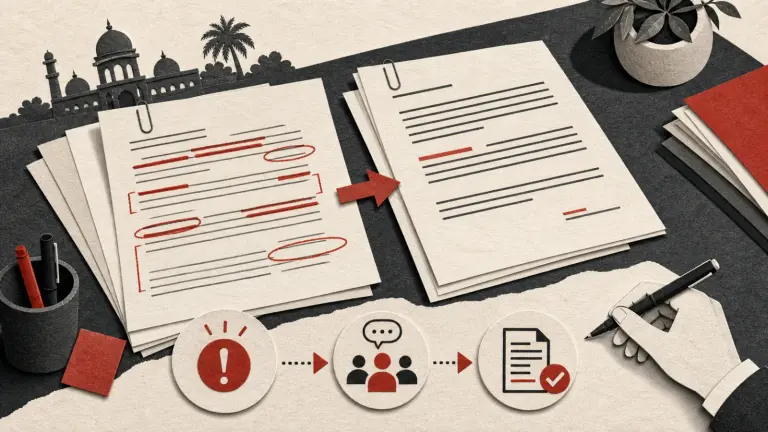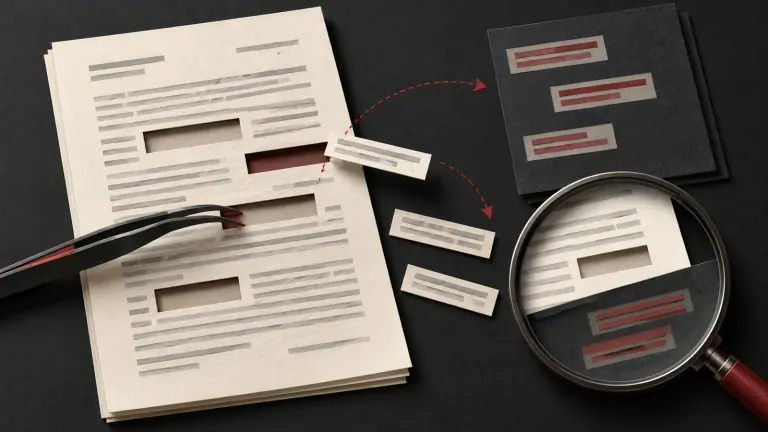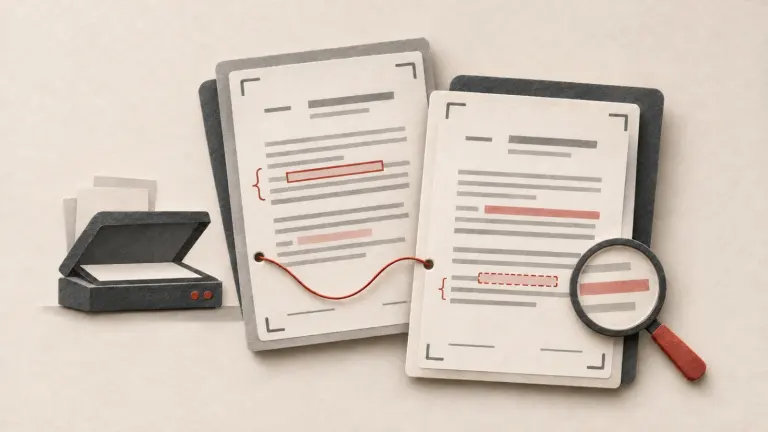
You have two scans of what should be the same document, but a text-comparison tool says there is no readable text, or the pages look almost identical at a glance. The reliable approach depends on what you need to find: a change in the visible page, a change in the words, or both.
First, keep the original files unchanged. Work from copies, give each version a clear label, and note where it came from and when you received it. A comparison report can help you review differences. It cannot tell you who made a change, whether a copy is complete, which version was signed, or what a change means legally.
Start by identifying what kind of PDFs you have
A PDF made from a word processor often contains a selectable text layer. A scan may instead be a page image with no text that a search or text-comparison tool can read. Some files combine scanned pages and searchable text; others have been through OCR, which adds recognized text behind the page image.
Try selecting a short sentence and searching for a distinctive word. If selection or search does not work, the page may be image-only. This quick check is not conclusive: a file can have text on some pages and images on others, and an existing OCR layer may be incomplete or wrong. For an important review, check representative pages and compare what the screen shows with the printed or scanned image.
Choose a comparison method
| What you need to find | A practical starting point | Main limitation |
|---|---|---|
| Any visible page change, including a mark, stamp, or moved image | Compare the scanned pages as images | A different scan, rotation, crop, contrast, or compression can create many differences even when the words did not change. |
| Changes to words in two readable versions | Compare their text layers | OCR mistakes can hide a real change or create a false one. Layout and handwriting may be missed. |
| Both wording and page appearance | Use a scan-aware comparison, then review the flagged pages and wording manually | Automated matching is a locator, not a completeness or legal-significance decision. |
Adobe’s help documents a “Scanned Documents, drawings or illustrations” comparison mode in Acrobat Pro, a paid edition. It says that mode captures scanned pages as images, compares pixels, matches similar pages, and can identify pages in a different order; the results combine text and graphics comparisons. Adobe’s documented scan-comparison workflow does not call for an OCR-first step. The same help page says to choose the scanned-documents setting for scanned files. Menu names and availability can vary by Acrobat version; Adobe lists the feature for Acrobat Pro and says the instructions also apply to Acrobat 2017 and 2020.
If you instead need a word-level comparison, OCR is one route to make image text selectable and searchable. Adobe’s OCR instructions say that a scan initially contains image data rather than searchable text, and that OCR adds a searchable text layer. After OCR, Adobe instructs users to check that recognition is accurate and complete, correct errors manually or rerun it with adjusted settings. OCR-first text comparison is therefore a different workflow from direct scan comparison: it can make wording easier to search, but it introduces recognition errors that must be checked.
A careful step-by-step workflow
- Preserve both received files. Save unaltered copies in the location required by your organization or matter. Do not overwrite the source scan with OCR output, annotations, or a comparison report. If the documents may be evidence, ask the responsible lawyer or records custodian how to preserve and handle them.
- Label the versions without guessing. Record the filename, source, received date, and any version date printed in the document. “Old” and “new” are useful labels only when you have a reliable reason to order the versions. A timestamp or filename alone may not prove which copy came first.
- Check the scan quality and page set. Compare page counts and look for missing, duplicated, upside-down, cropped, faint, or out-of-order pages. Confirm that both scans cover the same document and appendices. Different page size, rotation, color, skew, resolution, or compression can affect visual matching.
- Choose scan comparison when the page image matters. In Acrobat Pro, select All tools > Compare files, choose the two versions, then open Settings and choose the scanned-documents option. The interface may differ by version. Where available, narrow the page range only after confirming page correspondence; a page moved or inserted in one version may otherwise be overlooked.
- Use OCR when searchable wording helps. Make a separate searchable copy and preserve the original. Select the appropriate language and page range, then run recognition. Review the OCR output against the image, especially names, dates, amounts, section numbers, handwritten additions, stamps, and words near folds or shadows. A clean-looking text layer is not proof that the recognition is right.
- Review the report against both originals. Go through the differences in page context. Check whether a flag reflects a changed word, a changed mark, or ordinary scan variation. Review unflagged pages too, especially pages with poor quality, mismatched layouts, or uncertain page order. Record the location and what you observed in neutral terms; do not silently “correct” a source file.
- Keep a review record. Save the comparison output separately. Note the filenames and versions compared, the software and mode used, selected settings and page range, review date, and any pages you checked manually. If someone else needs to reproduce the review, preserve the original inputs and enough detail to repeat it.
When OCR-first comparison is useful
Use OCR-first comparison when the practical question is “Which words changed?” and the page images are sufficiently clear. Searchable text can make it easier to locate a changed clause or compare repeated terms across longer files. It is also useful when one document is a scan and the other is a digital PDF: you may need to recognize text in the scan before a text-based comparison can include it.
Treat OCR as an aid. Recognition may confuse similar characters such as “1” and “I”, omit faint text, merge columns, or misread a handwritten note. A program may then report a difference that is only an OCR error, or fail to show a real change because both versions were misread in the same way. For amounts, dates, names, obligations, exceptions, and signature blocks, check the exact image at the flagged location.
Microsoft’s Word support describes opening a scanned PDF in the desktop Word app and converting it into an editable document. Microsoft says this works best for documents that are mostly text and warns that page breaks may change. That can be useful when you need editable text, but reflowed Word output is not a substitute for a page-by-page comparison of the original scans. Its instructions apply to specified desktop Word versions; web and mobile behavior may differ.
Common reasons a comparison looks noisy or incomplete
- The same pages were scanned differently. A small rotation, shifted crop, changed brightness, or compression artifact can change pixels across much of a page. Review the highlighted area in context before treating it as an amendment.
- Pages do not line up. One version may have a cover sheet, an inserted page, or a different page order. Confirm correspondence before restricting a comparison to selected page ranges.
- OCR output is unreliable. Poor contrast, skew, handwriting, unusual fonts, or multilingual pages can reduce recognition quality. Improve the scan or adjust language/settings, then verify the words against the page image.
- A text-only setting hides visual changes. A changed seal, handwritten note, strike-through, or diagram may matter even if the extracted words are identical. Use a method that includes page appearance when those features are relevant.
- A flag is mistaken for a conclusion. A comparison identifies apparent differences under its chosen method. It does not establish authenticity, chronology, intent, completeness, execution, or legal effect.
Sensitive documents and review limits
Scanned legal documents can contain personal, financial, health, or confidential business information. Before sending a file to an online converter or cloud service, check the service’s current terms and your organization’s rules for permitted processing, retention, access, and deletion. The product instructions cited here do not establish a particular deployment’s storage location, retention behavior, or suitability for confidential matter files. When those details are not clear, ask your organization’s administrator or use an approved workflow.
For a document that may affect a legal right or obligation, have the responsible professional review the original documents and relevant context. A software comparison is not a legal opinion, and this general workflow does not determine whether a change is valid, binding, or material.
Final review checklist
- I preserved the two source PDFs and labeled the copies I compared.
- I checked that the page sets and order correspond, or noted where they do not.
- I chose image comparison, OCR-backed text comparison, or both based on the task.
- I checked flagged wording and visual changes against the original page images.
- I reviewed scan-quality and OCR limitations, including pages with no flags.
- I saved the report and recorded the versions, settings, and manual checks.
- I confirmed the file-handling workflow is allowed for the document’s sensitivity.
- I asked an appropriate professional to assess legal meaning where needed.
Related workflows
If a copy will be shared with sensitive material removed, see how to redact and verify a scanned legal PDF. For court-bound files, use the court-filing quality-control checklist. For contract negotiations, the contract redlining workflow explains how to connect comparisons to review decisions.
Further reading
The Library of Congress explains how OCR creates searchable text and why recognition errors occur in its digitized collections. The U.S. National Archives’ digitization quality management guide discusses inspection, completeness and preventing information loss when records are scanned. These resources describe general digitization practices; they do not certify a comparison result or determine legal effect.
For a broader view of how teams organize document review and follow-up, explore Gotham workflows.
Questions about comparing scanned PDFs
Can I compare two scanned PDFs without OCR first?
Adobe documents a scanned-document comparison mode in Acrobat Pro that compares page images as well as text and graphics. Other tools may require searchable text, so check the method and review the original pages.
Why do two identical scans show differences?
Changes in rotation, cropping, contrast, compression or page alignment can produce visual differences even when the underlying words are unchanged. Review each flag against both source images.
Does an OCR comparison find every change?
No. OCR can misread or omit text, while text-only comparison can miss handwriting, stamps and images. Review the original page images and relevant context.
This operational guide is general information, not legal advice or a guarantee that software identifies every difference. Check original documents, confidentiality obligations and matter-specific legal requirements.
How Gotham researches and reviews field guides